
Bring your group together.
Connect your radio.
Talk from Android, a Windows PC or a B9X Wi-Fi Handie-Talkie through your own B9X Voice Server. Add an optional radio gateway and control saved Icom IC-2730A channels from your phone.
One group. Several ways to join.
B9X Voice Server connects the participants. Hold push-to-talk to speak, release it to listen, and let the server distribute the active speaker’s voice to the group. Add the Windows radio gateway when you want a physical radio in the conversation.
The free Windows Local Edition and B9X Voice Server run on the same PC. Android phones and B9X handhelds connect using the server’s reachable network address. Internet access requires server network configuration.
Free client apps. A server you control.
B9X PTT Chat For Android
Carry your voice group on your phone. Use hold-to-talk or VOX, watch analog audio meters, adjust your levels and exchange group text messages.
Hear incoming text spoken aloud and request saved channels on the connected IC-2730A gateway.
Free Android App & Instructions →B9X PTT Chat For Windows
Use PC audio for voice chat or add a suitable radio interface. The Free Local Edition includes audio meters, level controls, VOX, RTS/DTR PTT and optional Morse identification.
Prepare your IC-2730A channel presets here. This app connects only to a server on the same PC.
Free Windows App & Instructions →B9X Voice Server
The central connection for your group. Choose a licensed server edition for the number of clients you want connected simultaneously.
A three-client setup can connect one Windows gateway and two phones. Each connected handheld or app uses one client connection.
View the 3-Client Starter Edition →Select a saved IC-2730A channel from Android.
Set up named presets on Windows, then request the saved channel number from the Android Channels tab. The gateway applies the radio settings and broadcasts a text result with the channel description and frequency.
Prepare your radio
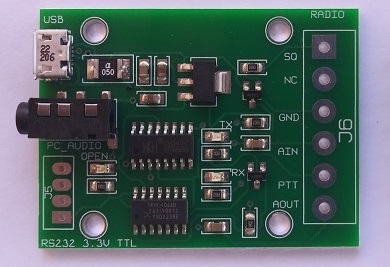
Connect the Icom IC-2730A to the Windows gateway. Use a suitable audio/PTT interface such as DigiRig Mobile and the appropriate radio cables.
Save your presets
Configure the control connection, then save and test the frequency, offset and tone settings for each named channel in Windows.
Choose from your phone
Request a saved channel while the station is idle. Look in Android Messages for the completed-change or error message; a queued request alone is not confirmation.
Channel control uses an Icom OPC-478UC-1 cable. A suitable custom cable may connect directly to DigiRig Mobile; contact DigiRig for wiring and configuration details. Application presets are not automatically the radio’s internal memory numbers.
Build the hardware. Design the controls.
Make it your own.
Connect your group with B9X Voice—or build your own touchscreen, communications and automation applications with B9X Basic and our visual design tools.
B9X Basic Developer Module
Bring sensors, inputs, outputs and connected services into your own embedded applications. Use readable B9X Basic to describe what your hardware should do.
Explore B9X Basic →B9X Basic GUI Module
Add a color touchscreen to your project. Create controls, indicators and connected applications—or use the supplied Handie-Talkie application as your Wi-Fi voice starting point.
Explore the GUI Module →View the Hardware →
B9X Screen Designer
Arrange touchscreen controls visually and generate the corresponding B9X Basic code. Build a screen around your project, from an instrument panel to a custom communications interface.
Explore Screen Designer →B9X Ladder Editor
Design control logic with contacts, coils, timers, counters and branches. Document your rungs and export readable programs for B9X Basic or Arduino.
Explore Ladder Editor →Choose your starting point.
Start with B9X Voice Server and the free client apps.
Add the Windows Local app, suitable interface and radio.
Explore the programmable B9X Basic GUI Module.
Explore B9X Basic, Screen Designer and Ladder Editor.
Connect people. Build useful things.
Explore B9X voice communication, programmable hardware and design tools—all from B9X Electronics.