
Description
B9X Basic Screen Designer
Turn Your Touchscreen Idea Into B9X Basic Code
Creating a professional touchscreen interface shouldn’t require manually calculating the X and Y position of every button, label, slider, meter, and graphic.
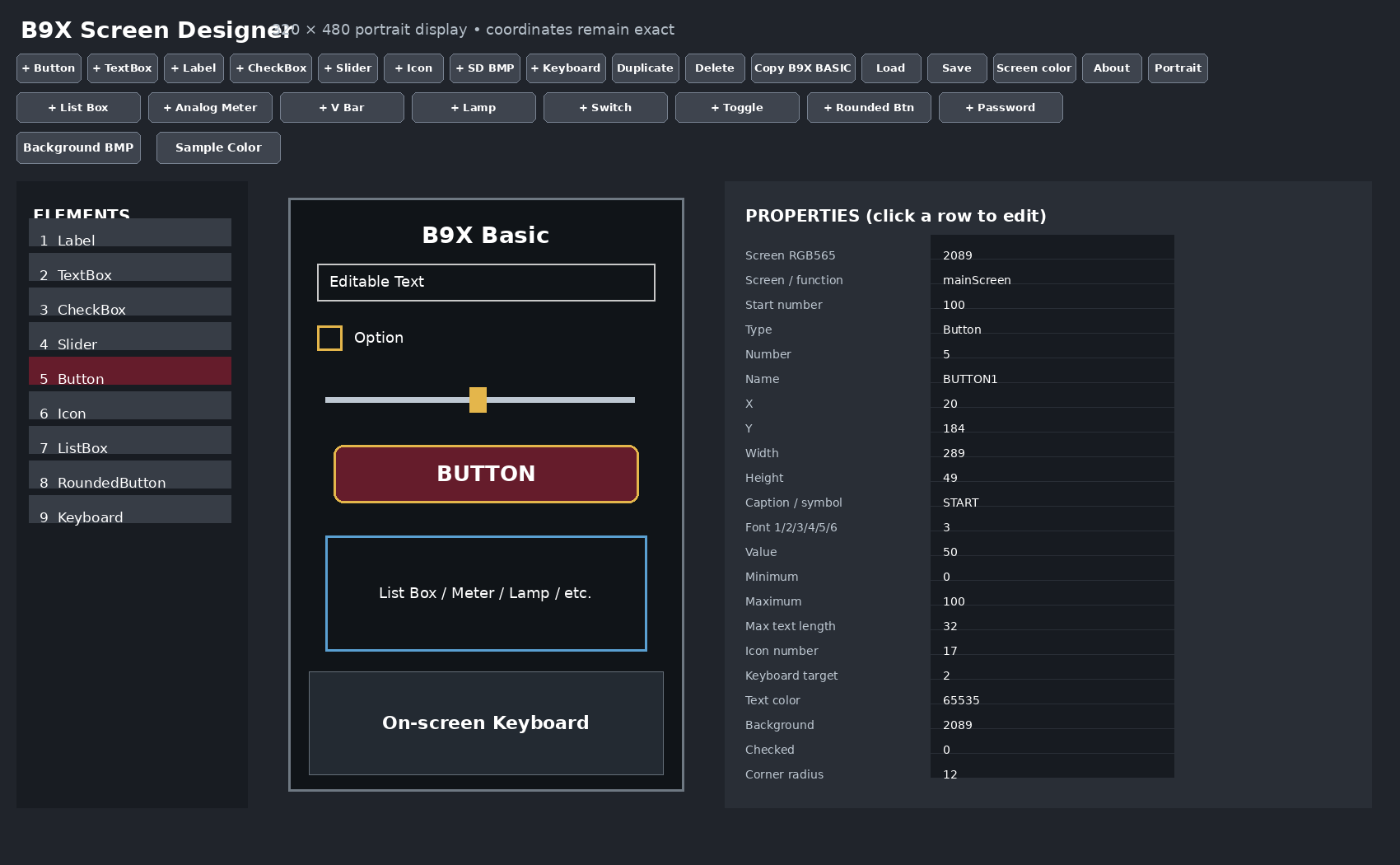
The B9X Basic Screen Designer gives B9X Basic developers a visual way to build complete touchscreen interfaces on a Windows PC.
Place your controls on the screen, move and resize them visually, configure their properties, choose colors and fonts, add graphics, and see the layout before it ever reaches your ESP32-S3 hardware.
When you’re finished, click Copy B9X BASIC and the Screen Designer generates the B9X Basic function needed to create your screen.
A Visual Designer for B9X Basic
Instead of manually writing display code such as:
result=displayAddButton(BUTTON1,20,184,289,49,"START",3);you can create and position the button visually.
The designer handles the coordinates and generates the corresponding B9X Basic code.
This makes it much easier to experiment with different layouts and build polished interfaces—even if you’re new to graphical embedded programming.
A Large Selection of Ready-to-Use Controls
Build screens using:
- Push buttons and rounded buttons
- Labels
- Editable text boxes
- Password text boxes
- Check boxes
- Sliders
- List boxes
- Analog meters
- Vertical bar meters
- Indicator lamps
- Switches
- Toggle switches
- Built-in graphical icons
- Touchable BMP images
- SD card and SPIFFS graphics
- Screen background BMPs
- On-screen alphanumeric keyboard
Controls can be positioned using real display coordinates, and applicable elements can be resized directly in the designer.
Portrait and Landscape Design
Create interfaces in either:
320 × 480 Portrait
or
480 × 320 Landscape
The Screen Designer works in actual hardware pixel coordinates, so the position you design corresponds directly to the target display.
Switch orientation and build the interface that best fits your application.
Build More Than Just Buttons
The B9X Basic Screen Designer is useful for much more than simple menus.
Create graphical control panels with analog meters and vertical bar graphs. Add status lamps to show equipment conditions. Add switches and toggle controls for machine operation. Build configuration screens using editable text boxes and an on-screen keyboard.
Add a slider for volume, temperature, speed, brightness, setpoints, or virtually any other numeric value.
Create list boxes for selecting operating modes, devices, settings, stations, files, or other choices.
The result can look and behave much more like a finished embedded product than a traditional development-board demonstration.
Built-In Icons and Custom BMP Graphics
Use the B9X display system’s built-in graphical icons directly from the Screen Designer.
For custom graphics, add BMP images to your screen and preview them while designing the interface.
The designer can generate paths for images stored on either:
/sdcard/or:
/spiffs/BMP images can also be made touchable, allowing a graphic itself to become an interactive control.
You can even use a BMP as the screen background and build your controls over it.
Password Entry and On-Screen Keyboard
Applications that require configuration information, network credentials, passwords, server information, or other user-entered data can use editable text and password fields.
Password fields mask the displayed characters, while the on-screen keyboard can be associated with an editable field.
This makes it possible to create standalone touchscreen applications that don’t require a PC keyboard for normal operation.
Six Font Sizes
Choose from six supported font sizes to create visual hierarchy within your interface.
Use smaller text for settings and detailed information, larger text for headings and important values, and appropriately sized fonts for touchscreen buttons.
RGB565 Color Control
Customize screen backgrounds, element backgrounds, and text using RGB565 colors.
You don’t need to calculate every color manually. The Screen Designer includes visual color selection and a Sample Color tool for obtaining the RGB565 value of a color shown in the screen preview.
Precise Positioning
Visual dragging makes initial layout fast, while exact property editing gives you precise control when you need it.
Elements can also be moved in one-pixel increments using the keyboard.
This combination makes the designer suitable for both quick prototypes and carefully aligned finished interfaces.
Multiple Screens Without Element-Number Conflicts
Larger applications often need more than one screen.
The Screen Designer includes a Start Number system specifically to make multiple separately designed screens easier to combine.
For example:
let START_NUM=100;
let BUTTON1=START_NUM+1;
A second screen can begin at 200, another at 300, and so on.
That gives each screen its own range of element numbers while allowing the individual designs to remain easy to understand.
Save Your Designs and Edit Them Later
Screen designs can be saved as .b9xscreen project files.
Return later to move controls, change colors, alter captions, add new elements, or completely redesign the interface.
You aren’t locked into the generated code as your only copy of the design.
Generate B9X Basic Automatically
When the screen is finished, Copy B9X BASIC generates the B9X Basic screen function and places it on the Windows clipboard.
The generated function can handle the work required to establish the screen, including orientation, clearing previous elements, creating the new controls, setting their colors, loading applicable graphics, creating the keyboard, and refreshing the display.
You can then concentrate on the part of the application that actually matters—what your program does when the user interacts with the screen.
Designed for Beginners, Useful for Advanced Projects
If you’re new to embedded touchscreen development, the Screen Designer removes much of the trial-and-error normally involved in building a graphical interface.
Instead of starting by memorizing display functions and manually calculating coordinates, you can start by designing the screen you want.
Experienced B9X Basic developers gain something equally valuable: speed.
Complex interfaces can be laid out, changed, saved, reused, and regenerated without repeatedly editing dozens of display calls by hand.
Ideal For
The B9X Basic Screen Designer is well suited for industrial control panels, home automation interfaces, MQTT dashboards, instrumentation, machine controls, radio and VOIP interfaces, sensor displays, configuration panels, test equipment, portable controllers, IoT devices, and custom ESP32-S3 touchscreen products.
Whether you’re creating your first touchscreen application or building a sophisticated multi-screen controller, the B9X Basic Screen Designer provides a faster and easier way to turn your interface idea into working B9X Basic code.
Design Visually. Generate the Code. Build Something Real.
B9X Basic Screen Designer — graphical touchscreen development for B9X Basic.