
Follow these instructions to install the app on your Android phone:
- Download the B9X_PTT_Chat app above and unzip it.
- Plug your Android phone into your PC via a USB cable.
- Swipe down and you should see a message ‘USB For File Transfer’ and press on it.
- Select ‘Use USB For’ and select ‘Transferring Files’.
- On the PC the File Explorer should appear or browse to your phones drive then ‘Download’.
- Copy and paste ‘B9X_PTT_Chat.apk’ to your phone’s Download directory.
- Using your phones file manager and find B9X_PTT_Chat.apk.
- Press on this file and select the permissions to allow for its installation.
- Once installed, allow the microphone permission, for this app.
- Start the app and you should see it load. It is called ‘B9X PTT Chat’.
- Enter the Server Host IP address of B9X Voice Server on your LAN. The key and password are already set to the server’s default.
- Click Connect and you will see its icon added to the server.
- Repeat this for an additional phone.
- Now the two phones can talk with each other.
If your phone differs than what I described, you will need to search the Internet or use AI for further instructions.
B9X Electronics · Mobile voice and messaging
B9X PTT Chat For Android
Your B9X Voice Server connection, on your Android phone. Join a voice conversation, press and hold to talk, or enable hands-free VOX. Exchange short text messages with compatible connected users and let your phone read incoming messages aloud.
A dark, tabbed interface keeps everyday operation simple. Live analog microphone and speaker meters, saved audio controls, adjustable playback buffering, and automatic reconnection help you tailor the app to your device and connection.
Voice and text through your B9X Voice Server
Press to talk
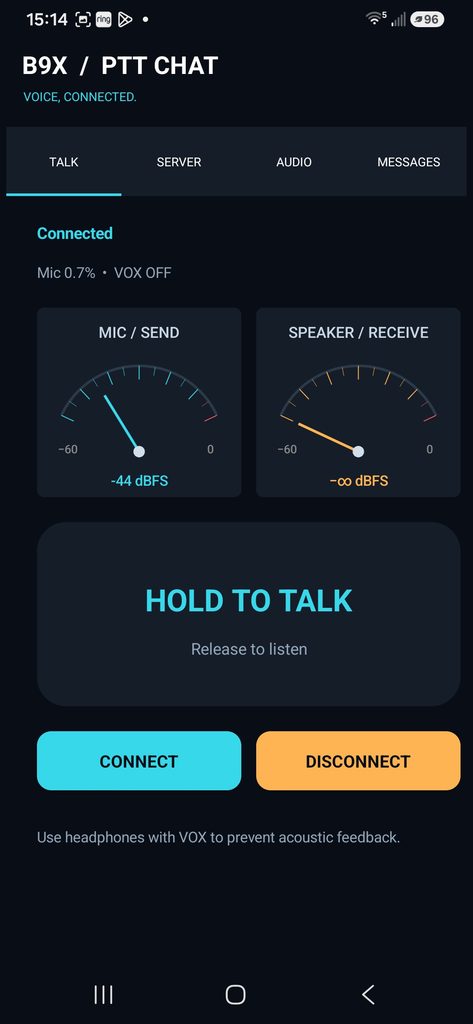
Connect to your server and hold the large on-screen PTT control while speaking. Release it to listen to other users. Two analog meters show microphone and received voice levels.
Message your group
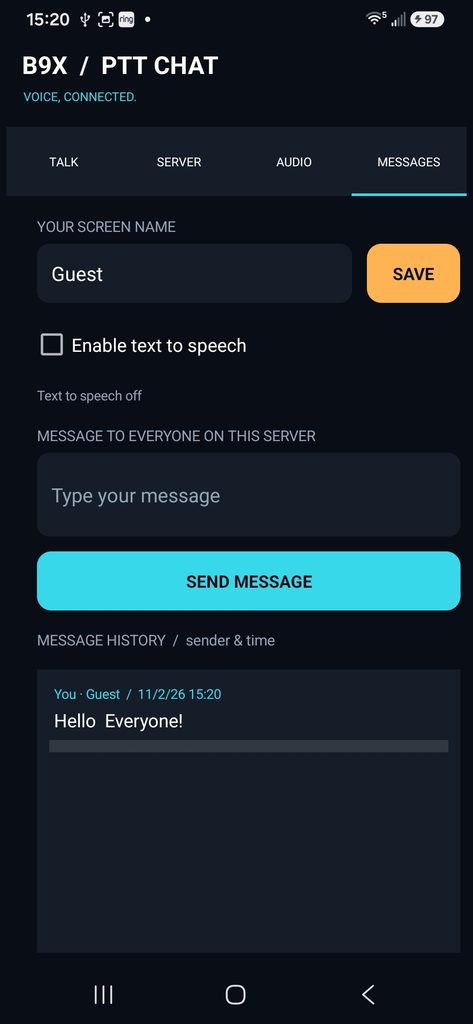
Choose a screen name, send a short text message, and review a saved conversation history with sender names and times. Enable text to speech to hear new incoming messages.
Features at a glance
- Four clear tabs: Talk, Server, Audio, and Messages.
- Manual hold-to-talk and optional hands-free VOX.
- Live microphone and speaker analog meters.
- Saved microphone gain and speaker level controls.
- Adjustable VOX trigger, VOX time-off delay, and playback cushion.
- Server password and encryption-key fields with independent Show/Hide controls.
- Optional device-protected storage for remembered credentials.
- Always Stay Connected for startup connection and automatic retries.
- Saved screen name and persistent text-message history.
- Optional Android text-to-speech playback of new received messages.
This is a half-duplex client: users take turns speaking through a compatible B9X Voice Server. It is not a standalone server, a full-duplex telephone client, or a Windows radio-interface replacement. It does not include COM-port RTS/DTR control, a Morse IDer, DTMF server switching, or OpenAI voice commands.
What you need
- An Android phone or tablet running Android 8.0 or later.
- A working microphone and listening output. Headphones are recommended, especially for VOX.
- A Wi-Fi or mobile-data connection that can reach your B9X Voice Server.
- The server’s hostname or IPv4 address, UDP port, password, and matching 32-character encryption key.
- For named text chat, another compatible client with support for the app’s TMSG messaging format.
- For spoken messages, an available English voice in the phone’s Android text-to-speech system.
The normal voice format is 11025 Hz, stereo, 16-bit PCM. The server port normally used is UDP 18000; your server operator may use a different port. The app supports a mono option for installations that specifically require it.
Install and open the app
- Download the Android APK supplied for this application.
- Open the downloaded APK on the Android device. If Android asks, allow installation from the browser or file manager you are using, then approve installation.
- Open B9X PTT Chat. That is the launcher label used by this version.
- When connecting for the first time, allow microphone permission. On newer Android versions, allow notifications so the ongoing voice-session notification is visible.
A source-project ZIP is not an installable APK. If you received the B4A project rather than an APK, it must first be built into an Android application. The following instructions describe using the installed app.
The four tabs
| Tab | What you will find |
|---|---|
| Talk | Connection status, microphone and speaker meters, Hold to Talk, Connect, and Disconnect. |
| Server | Server address, ports, password, encryption key, remembered credentials, Always Stay Connected, and channel format. |
| Audio | Microphone gain, speaker level, VOX, VOX trigger, VOX time-off delay, and playback cushion. |
| Messages | Screen name, Send Message, sender/time history, and Enable text to speech. |
Set up your server connection
- Open Server.
- Enter the actual hostname or IPv4 address of your B9X Voice Server. Do not include
https://, a web-page path, or a port in the address field. - Enter the server’s UDP port.
- Enter its password and the exact 32-character encryption key. Both must match the server. The key must use printable ASCII characters.
- Leave Local UDP Port at 0 so the phone chooses an available local port. Use a fixed local port only if your particular installation requires it.
- Leave Stereo PCM checked for the normal configuration. Only change the format while disconnected and only to match the server.
- If desired, select Remember password and key on this device.
- Tap Save Settings, return to Talk, and tap Connect.
- Wait for the status to show Connected before transmitting.
Initial defaults
| Field | Initial value |
|---|---|
| Hostname / IPv4 | 192.168.1.1 |
| Server UDP port | 18000 |
| Local UDP port | 0 — automatic |
| Server password | adminPassword |
| Encryption key | JZ624RAS127878AF901C423910763350 |
| Channel format | Stereo PCM |
These are sample defaults, not credentials for every B9X server. In particular, 192.168.1.1 must be changed unless that is the actual server address. Saved custom settings take precedence. Use the values supplied by your server operator.
The password and key start hidden. Each has its own SHOW / HIDE control. Revealing one does not reveal the other; visibility returns to hidden when the screen is recreated. Connection fields are locked while a connection attempt, active session, or automatic-retry session is running. Disconnect before changing them.
Talk and listen
- Connect to the server and keep VOX disabled for the first test.
- On Talk, press and hold HOLD TO TALK.
- Speak normally while the app shows TRANSMITTING.
- Release the control to stop sending and listen.
- When another user speaks, the app shows RECEIVING and the speaker meter responds.
Manual transmission and VOX are inhibited while incoming voice is being received. Changing tabs, leaving the screen, or canceling a touch releases manual hold-to-talk. The microphone meter can move without transmitting; it shows the measured input, not proof that audio is being sent.
Start with two working clients on a LAN and verify audio in both directions. Then test the public server hostname over mobile data. A remote client normally does not need its own incoming port-forwarding rule; the server’s public UDP path must work.
Analog meters and audio levels
The microphone and speaker needles follow measured voice audio. They are not just connection indicators. The microphone indication follows microphone gain; the speaker indication follows the app’s received-voice level control. They operate during an active connection attempt or session. An idle, disconnected app does not keep the microphone open.
dBFS means decibels below digital full scale. Normal voice appears below 0 dBFS. The high-level indicator identifies very high measured levels; too much gain can distort the sound. These meters are not RF signal-strength or transmitter-power meters.
| Audio control | Range / default | Effect |
|---|---|---|
| Microphone gain | 0–400% / 100% | Adjusts outgoing microphone audio. 100% is unchanged; 0% mutes it. Higher gain can help a quiet microphone but may cause clipping and increases VOX sensitivity. |
| Speaker level | 0–200% / 100% | Adjusts received voice. 100% is unchanged; 0% mutes it. Excessive amplification can distort loud received audio. |
The phone’s media-volume buttons also affect listening volume. The app saves audio settings when changed and when you leave it. Hardware volume, headphones, and the selected Android audio route can still affect what you hear.
Hands-free VOX operation
VOX automatically sends microphone audio when its level exceeds the trigger. Open Audio and select Enable VOX (hands-free transmit). Set the trigger and delay, then return to Talk to use it.
| Setting | Range / default | Adjustment |
|---|---|---|
| VOX trigger | 0.05–10.00% RMS / 1.00% | Lower is more sensitive. Choose a value above idle background noise but below your normal speaking level. |
| VOX time-off delay | 100–10000 ms / 1000 ms | Keeps sending briefly after your level drops below the trigger, helping bridge the pauses between words. |
If VOX stays on in a quiet room, increase the trigger or reduce microphone gain. If normal speech does not trigger it, decrease the trigger and check microphone permission and gain. A one-second delay equals 1000 milliseconds.
VOX transmission pauses on Server, Audio, and Messages so editing settings or composing messages does not accidentally transmit your speech. Return to Talk for voice operation. Incoming voice and spoken-message playback also inhibit VOX.
Playback buffering for Wi-Fi and mobile data
The Playback cushion control is on Audio. It offers 100–400 ms, with an initial value of 150 ms.
Start at 150 ms. If received audio arrives unevenly on mobile data, try 200 ms, then 250 ms. Larger settings add listening delay. Connection quality also depends on signal strength, congestion, and the server’s connection.
Buffering helps smooth uneven packet arrival; it cannot recreate speech that never reaches the phone or fix a sustained outage. Test with the same server and another known working client before changing several settings at once.
Text messaging and screen names
- Open Messages.
- Enter your screen name and tap Save. The initial name is Guest; choose something other users will recognize.
- Connect to the B9X Voice Server if you are not already connected.
- Enter a short message and tap Send Message.
- Review the message history below. Entries show the sender and date/time; your sent entries also show You.
The screen name is also saved when sending or leaving the app. History remains on the phone after restarting and can be scrolled to older entries. Clearing app data or uninstalling the app removes that local history.
Who receives a message?
Messages are broadcast to everyone connected to the same server, subject to the server allowing broadcasts for the credentials in use. They are not private, one-recipient messages. A screen name is a display label, not an authenticated identity.
The chat uses a TMSG identifier to distinguish text chat from other broadcast types. Other clients need compatible TMSG support to show sender names and text correctly. An older client may show an encoded broadcast rather than a readable chat entry. Simply supporting B9X voice audio does not guarantee compatible named text chat.
Message length
Keep messages short. Screen names allow up to 32 UTF-8 bytes—up to 32 ordinary English characters, or fewer for some other characters. Message capacity depends on the name and text used, typically around 100–140 English characters. Unicode and punctuation are supported within that limit. Oversized messages are rejected with an explanation rather than silently shortened.
A queued notice means the app accepted the message for sending. It is not a delivery or read receipt, and it does not prove every other user received the message. Repeated server echoes with the same message ID are not displayed as separate messages.
Hear received messages spoken aloud
On Messages, select Enable text to speech. The app reads newly received messages in the form “screen name says: message.” This option is saved for future sessions.
Speech uses the phone’s Android text-to-speech engine; it does not need an OpenAI API key. If the status asks for an English voice, install one in the device’s text-to-speech settings. The chosen Android engine and voice determine whether a download or network connection is needed.
- Only new received messages are read. Your outgoing messages, their echoes, stored history, and unrelated broadcast types are not read aloud.
- Speech waits while voice is being sent or received.
- If incoming voice starts during a spoken message, speech stops and retries that message after voice traffic is quiet.
- VOX is inhibited during speech and briefly afterward to prevent the spoken message from being transmitted back through the microphone.
- Manual PTT interrupts queued speech. Disconnecting or closing the app stops speech.
- History and normal text messaging still work if speech is disabled or unavailable.
Spoken-message volume follows the app’s Speaker level from mute through 100%, together with Android media volume. Settings above 100% do not further amplify Android speech. The speaker needle measures received voice audio; it is not a separate speech-engine meter.
Always Stay Connected and background operation
Select Always Stay Connected on Server to connect when the app opens. After a connection timeout or a detected loss, the app waits about one minute and attempts a fresh connection. Enable remembered credentials if you want startup connection to work after Android has restarted the app’s process.
| Action | Behavior in this Android version |
|---|---|
| Tap Disconnect | Closes the current session and stops its retries. The checkbox remains saved for the next app opening. |
| Press Android Back to close the app screen | Disconnects and stops the voice service. |
| Press Home | Leaves the voice service running. Tap the ongoing notification to return. Manual PTT is released. |
| Remove the app from Recent Apps | Stops its voice service. |
| Force-stop or Android kills the process | An orderly final disconnect cannot be guaranteed; the server must expire the session if necessary. |
Android battery restrictions and other apps taking audio focus can affect background behavior. A notification indicates an ongoing session/service, not a guarantee that every server connection is currently established. Check Talk for the actual connection state.
Saved settings and credentials
Server fields save with Save Settings, Connect, or when you leave the app screen. Audio controls save when adjusted. The screen name, text-to-speech preference, and message history are also retained.
If Remember password and key on this device is selected, the credentials are encrypted using a device-bound Android Keystore key. Uncheck Remember to remove the saved credential entry. Revealing a field with Show does not change the server’s credentials.
Clearing app data or reinstalling may require entering credentials again. Device-bound protected credentials are not intended to be copied to another phone. Data protection on the phone does not change the network security capabilities of the existing B9X Voice Server.
The app does not provide OpenAI transcription or OpenAI speech generation. Spoken text messages use the selected Android speech engine. Remember that broadcast messages are shared with the server’s connected group.
Troubleshooting
The app will not connect
Confirm the actual server hostname/IP, UDP port, password, and exact 32-character key. The default address 192.168.1.1 may be your router rather than your server. Start with a LAN test, then test remote access. For a remote server, confirm its public UDP port is reachable. Leave Local UDP Port at 0 initially.
It connects on Wi-Fi but not mobile data
Use a publicly reachable hostname/address rather than a private LAN address. Verify the server’s public forwarding and connection, and check whether the mobile network permits the UDP traffic. A working local connection does not prove the public connection path is available.
Connected, but I cannot hear anyone
Turn up Android media volume and the app’s Speaker level. Check the headphones, Bluetooth route, or speaker being used. Have another client transmit and confirm that Stereo PCM matches the server’s format.
The microphone meter does not move
Check microphone permission, microphone gain above 0%, and an active connection attempt/session. Make sure another app or phone call is not holding audio focus. A disconnected idle app does not continuously monitor the microphone.
The microphone meter moves but nobody hears me
Confirm Connected, then hold manual PTT or return to Talk with VOX enabled and correctly adjusted. Transmission is inhibited during incoming voice and spoken-message playback. On Server, Audio, and Messages, VOX transmission is paused.
VOX stays on or misses my speech
Lower trigger values increase sensitivity; higher values reduce it. Adjust the trigger above idle noise and below your normal speech. Check microphone gain and use headphones. Increase the time-off delay if gaps between words cause premature release.
My text message is rejected or does not appear on another client
Shorten the message or screen name if it exceeds the available length. Connect before sending, and confirm the server permits broadcasting. Other clients must support the same TMSG format. There is no delivery/read receipt for proving reception by every client.
Text messages appear, but are not spoken
Enable text to speech on Messages and check its status line. Install an English Android voice if requested. Check app Speaker level and Android media volume. Speech waits for a quiet voice channel and does not replay older history or read your outgoing messages.
Incoming audio is choppy or delayed
Compare against a clean Wi-Fi/LAN test. Improve reception and try a modest playback cushion increase. Larger buffers add delay; they cannot recover missing speech or fix an interrupted connection.
The app disconnects when I close it
This is expected when you close with Back or remove the app from Recent Apps. Use Home if you want the ongoing voice service to continue, and tap the notification to return. Android may still limit background operation.
For support, note your Android version, device model, app version, server port, Wi-Fi/mobile-data connection, and the relevant settings or status message. Do not send your server password or encryption key.